KAOSLINUX OS
2025.03 ISO
PERFECT FOR OLD & NEW DEVICES!
64-Bit(Live Boot, Full Installation)Brand New Bootable USB Drive
🙂 GIVE A NEW LIFE TO YOUR DEVICE!
What is KAOS LinuxOS?The idea behind KaOSTo create a tightly integrated rolling and transparent distribution for the modePacmanktop, build from scratch with a very specific focus. Focus on one DE (KDE Plasma), one toolkit (Qt), one architecture (x86_64).
KDE and Qt focusedUsing a rolling release model, all is built for best integration with KDE and Qt. Focus is on packaging, a few KaOS developed applications are in use.
Target UserIt targets users who have tried many Distributions and have found they prefer a Distribution that uses all its available resources to work on one DE to make that the best it can be, and know that after their searches, the best for them is KDE Plasma.
GoalsThere is no goal to make the most possible software available, KaOS will stay limited in size of the repositories, and will work on quality instead of quantity. That goal makes it clear, a large user base is not what is intended or expected.
Elegant SimplicitySimple goals, independent decisions bring the power of Plasma 6 to the forefront. Splitting of packages is kept to a minimum
Repository layout is simpleEvery package in every repository is build by and for KaOS, using the powerful Pacman as package manager.
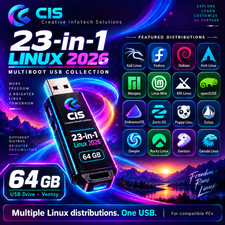
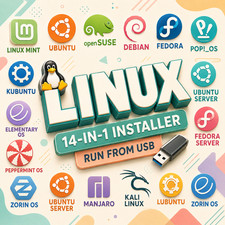
2️⃣🅰️ What's included in 25-IN-1 MASTER COLLECTION?🚩 Proxmox OS VE ▸ Puppy OS (BookwormPup64) ▸ Rocky OS (gnome) ▸ Tails OS ▸ TinyCore OS ▸ Void OS (xfce) ▸ Zorin (Workstation) ▸ Garuda OS (Cinnamon) ▸ Haiku OS ▸ Kali OS (Installer) ▸ KDE Neon OS (user) ▸ Linux Lite OS (xfce) ▸ Lubuntu OS (LTS Desktop) ▸ Manjaro OS (KDE Plasma) ▸ Mint OS (Xia-Cinnamon) ▸ MX Linux OS (xfce) ▸ Nix OS (gnome) ▸ Nobara OS (Official) ▸ Peppermint OS (Debian) ▸ Pop!_OS ▸ Proxmox OS VE ▸ Puppy OS (BookwormPup64) ▸ Rocky OS (gnome) ▸ Tails OS ▸ TinyCore OS ▸ Void OS (xfce) ▸ Zorin OS
Give it a try. You’ll Love it!⭐️ How to Boot Linux OS from USB?✅ Steps for Windows PC & Chromebooks
Follow these easy steps:
- Turn-off your computer
- Insert the USB into any available USB port
- Switch on your computer
- Press the key that allows your computer to boot to an alternate device (ESC on many HPs, F12 on many Dells, F8 on many custom builds, yours may vary, see your computer's documentation)
- At the Book-up screen, select Boot from USB Interface option, press enter.
- Follow on-screen links for initiate OS.
- Wait for system to boot into LinuxOS.
- That's it! Enjoy!
✅Step for Apple Macs Devices
Follow these easy steps:
- Turn-off your computer
- Insert the USB into any available USB port
- Switch on your computer
- Press the Option keyon your keyboard to go the boot menu
- Select EFI Book
- Follow on-screen links for initiate OS.
- Wait for system to boot into Linux OS.
- That's it! Enjoy!