- Store
- New Arrivals
- Add to Favorite
- View response
- Contact
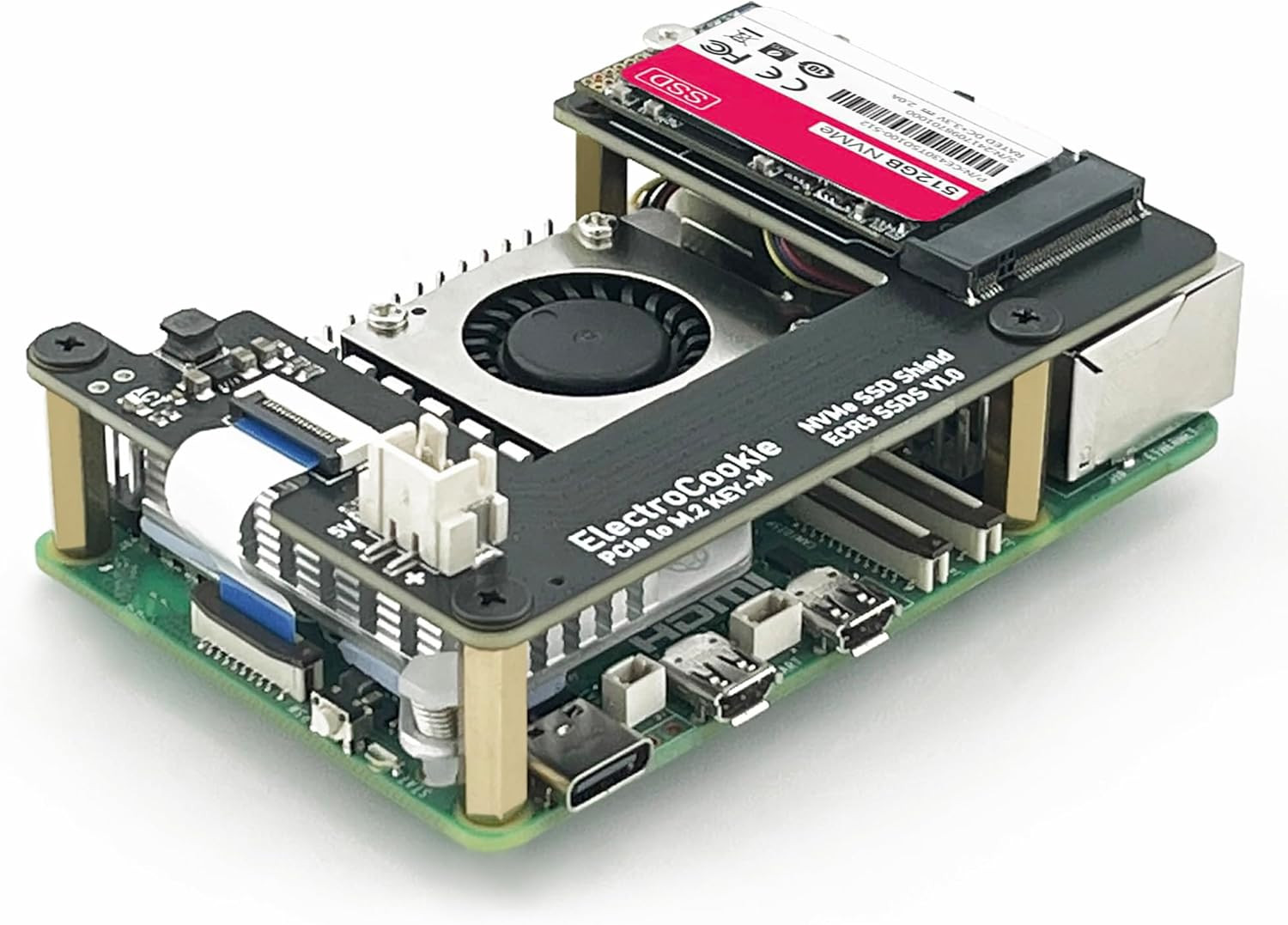
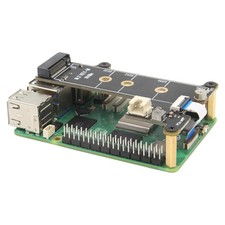
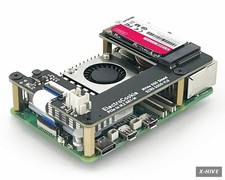
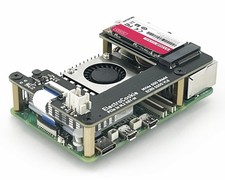
Electrocookie Pcie to M.2 Nvme SSD HAT Board for Raspberry Pi 5 – Supports Key-MDescription Item model number ECR5_SSDS Cooling Method Air Color Black Series ECR5_SSDS Motherboard Compatability Mini ITX Material Aluminum Color Black Case Type Raspberry Pi Package Dimensions 4.61 x 3.03 x 0.35 inches Item Weight 0.02 Kilograms Power Supply Mounting Type Bottom Mount Model Name ECR5_SSDS Recommended Uses For Product diy projects Brand ElectroCookie Manufacturer ElectroCookie
- Boosted System Performance – Enjoy faster data processing and response times, ideal for projects requiring high-speed storage, with expanded storage options.
- M.2 Key-M NVMe SSD Supported – Designed for Raspberry Pi 5, this M.2 HAT supports 2230 and 2242 NVMe SSD sizes and includes a copper pillar holder for secure 2230 SSD installation.
- **SSD Compatibility & Setup Info : Please check SSD compatibility in the product description or by searching “Pi Benchmark” online. Boot drive setup instructions are also provided in the product description below, or you can follow official Raspberry Pi documentation and online tutorials.
- Fully compatible with Electrocookie cases (B0CV79ND9Z, B0DLWKVQGT) and coolers (B0CZ3G3DL8, B0DLWQ44H5).
- Power Source – The SSD shield is powered directly through the FFC PCIe ribbon; use a PD 27W power adapter for the Raspberry Pi 5.
- Packing List – Includes 1 x M.2 NVMe SSD HAT Board, 1 x Assembly Component Pack; Note: Raspberry Pi 5, SSD drive, and power adapter are not included.
Raspberry Pi 5 NVMe SSD HAT – Compatibility Notice This NVMe SSD HAT for Raspberry Pi 5 shares the same circuit design as widely adopted M.2 HATs, featuring a PCB layout that’s been minimally customized to fit our case dimensions. As with the official Raspberry Pi Foundation M.2 HAT, it supports only 2230 and 2242 NVMe SSDs.
If your SSD is not recognized or fails to boot with the Raspberry Pi 5, it is most likely due to incompatibility between the SSD and the Raspberry Pi 5. The HAT simply acts as a signal and power bridge and does not affect SSD compatibility.
SSD controllers known to cause issues include:
SMI2263XT, SMI2263EN, MAP1202, Phison series controllers
★ Known Incompatible SSDs ★
The following SSDs have been reported to show compatibility issues with Raspberry Pi 5:
- Inland TN446
- Corsair MP600
- Micron 2450
- Kingston OM8SEP4256Q-A0
- WD_Blue SN550 / SN580
- WD_Green SN350
- WD_Black SN850 / SN770
- Kingspec series
- Any other SSDs that use SMI2263XT, SMI2263EN, MAP1202, or Phison series controllers
★ Recommended SSDs (Confirmed Compatible) ★
The following SSDs are known for low power consumption and low heat generation, making them a great match for the Raspberry Pi 5’s hardware and power limits:
- Samsung PM9A1, PM981, PM991, PM991a, PM9B1
- SK hynix BC901, BC711
- Official Raspberry Pi NVMe SSD
★ Tips for Stable Operation ★
- Make sure your Raspberry Pi 5’s bootloader and OS are up to date.
- Before purchasing an SSD, we recommend searching online for “Pi Benchmarks” to check real-world performance and compatibility reports.
🔧 How to Set Up SSD Boot on Raspberry Pi 5 Using an M.2 HAT
📝 Note: SSD boot setup is the same as with the official M.2 HAT or other standard models.
You can follow the official Raspberry Pi documentation, online tutorials,
or simply refer to the step-by-step guide below.
1. Assemble your Raspberry Pi 5 board with the M.2 HAT and SSD.
2. Insert an SD card with Raspberry Pi OS into your Raspberry Pi 5, and power it on.
3. Open the terminal and run the following commands one by one to update your Raspberry Pi.:
sudo apt update && sudo apt full-upgrade
sudo apt install rpi-eeprom
sudo rpi-eeprom-update
4. Install Raspberry Pi Imager:
sudo apt install rpi-imager
5. Launch Raspberry Pi Imager:
rpi-imager
6. In the Imager:
- Select Raspberry Pi 5 as your device
- Choose the OS version
- Select your SSD as the target drive, and start the installation.
7. After OS installation, run the following to configure boot order:
sudo raspi-config
8. Set boot order:
Advanced Options → Boot Order → NVMe/USB Boot
Then press Finish or the Escape key.
9. Reboot your Raspberry Pi. It will now boot from the NVMe SSD 🎉