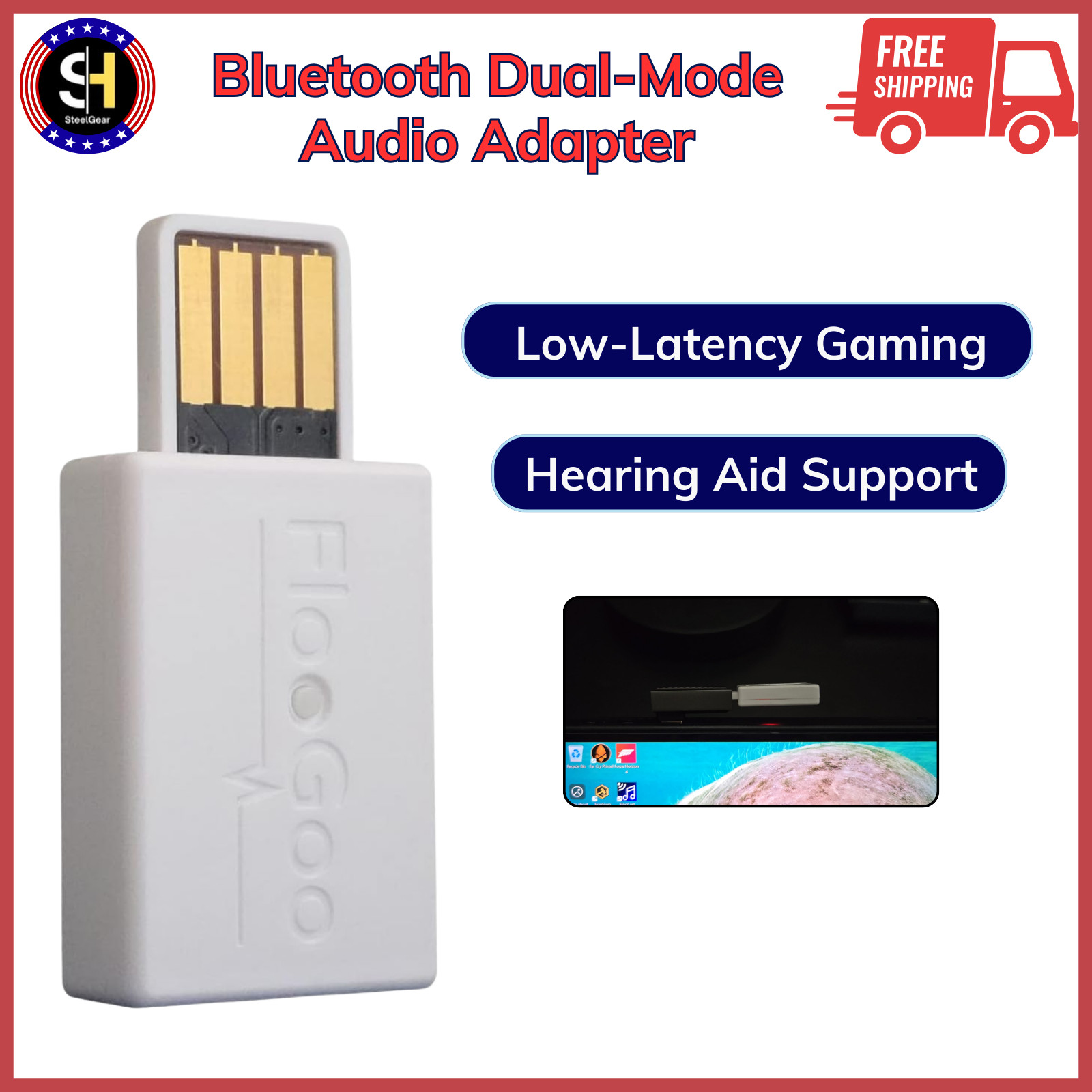
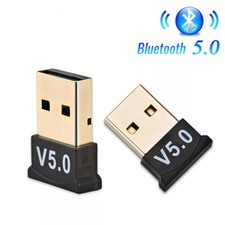
Bluetooth Dual-Mode Audio Adapter- aptX Low-Latency Gaming, USB For PCs & Gaming Features
- Auracast broadcaster
- LE Audio with a qualified design now supports hearing aids as well
- Support aptX, aptX HD, and aptX Adaptive with Lossless
- Dual-mode: Classic Bluetooth and LE audio sources on a single device
- USB audio interface with plug-and-play support—no drivers needed for Windows, Mac, or Linux. Compatible with PS4, PS5, and Switch.
- A2DP-to-Auracast Relay with Specialized Firmware – Enables TVs with classic Bluetooth or iPhones to act as Auracast transmitters
- USB Auracast Receiver Mode with Specialized Firmware
Product description
One dongle for all your Bluetooth audio needs.
Lossless* or high-quality audio playbackExperience high-definition audio playback with Bluetooth, achieving CD-quality lossless where every bit is faithfully delivered to your ears.
*Please also check if your headsets/earbuds/speakers support aptX Lossless. Confirmed devices include Bose QuietComfort Ultra, Bowers & Wilkins Pi8, Cambridge Melomania P100, Creative Aurvana Ace 2, Denon PerL Pro, Earfun Air Pro 4, Focal Bathys, NuraTru Pro, Sennheiser MOMENTUM True Wireless 4 and Sonos Ace.
*Please disable "Spatio Audio" and "Multipoint" in the headset's app if lossless mode cannot be enabled.
*Please set the USB audio sample rate to 44.1kHz or 48kHz to enable lossless audio.
*The LC3 codec is used with Samsung Buds 3, Samsung Buds 2/3/4 Pro, Sony LinkBuds S, Inzone Buds, WF-1000XM5/6, WH-1000XM6, Creative Zen Air Pro, Technics EAH-AZ100, Xiaomi Redmi Buds 6 Pro and hearing aids that support LE Audio.
*aptX HD with Sony WH-1000XM3.
Low-latency gaming audio as low as 19.5ms*Ultra-low latency is achievable with the latest Bluetooth low-energy audio capable headsets and earbuds. The standard USB audio interface supports both speaker and microphone channels.
*19.5ms latency with aptX-Lite enabled devices, excludes USB driver. Confirmed devices include the Creative Aurvana Ace 2.
*Achieves less than 20 ms latency when used with LC3-enabled earbuds and headsets. Confirmed compatible devices include Samsung Galaxy Buds2/3/4 Pro, Sony LinkBuds S, INZONE Buds, WF-1000XM5/6, and WH-1000XM6.
*Samsung Buds 2/3/4 Pro and Sony Inzone Buds offer 48kHz for both playback and microphone, ensuring top-tier audio performance.
*Please pair the earbuds in 'High Quality' mode first, then switch to 'Gaming' mode.
*For the best compatibility, please update the dongle's firmware to the latest version as indicated in the FlooCast app.
Auracast for public areas, offices or homesBroadcast audio in various settings such as churches, concerts, museums, airports, buses, stores, TVs at the gym or home, or even transform your old Bluetooth phone into a broadcaster.
Note for TV users: Many TVs have USB ports that only support external storage, not USB audio output. Please confirm whether your TV supports USB audio output. If not, check if it can pair directly with a Bluetooth headset — in that case, you can set the FMA120 to relay mode to enjoy Auracast (see our support page for setup instructions). Alternatively, you may choose the FMA121, which features a 3.5 mm analog input for easier TV connection.
*For hearing aids that don’t natively support Auracast: You can load the Auracast receiver mode firmware onto a second FMA120 and use it with your mobile phone to enable Auracast reception.
Online chat or meetingsYour headset or earbuds' operations are transferred to standard USB HID input for your host, ensuring compatibility with VoIP Apps including Microsoft Teams.
Note for hearing aid users: For the best compatibility, please update the dongle's firmware to the latest version as indicated in the FlooCast app. Confirmed compatible models include GN ReSound Nexia/Vivia/Savi, Jabra Enhance Pro 20/30, Oticon Intent, Philips HearLink 9050, Rexton Reach, Signia 5IX/7IX, Starkey Edge/Omega AI, and TruHearing 7.
*Phonak and Kirkland models that use classic Bluetooth can also be supported through classic Bluetooth with the mSBC/WBS codec.
Four-step quick start. Full user guide details are on the back of the package.
Device Firmware UpgradeKeep your device running at its best by updating to the latest firmware.
Option "Prefer using LE audio"Enable "Prefer using LE audio for dual-mode devices" before pairing your LE Audio earbuds, headphones, or hearing aids. The FlooGoo FMA120 supports LE Audio hearing aids with the LC3 codec. Please do not confuse this with legacy MFi or ASHA models. Confirmed LE Audio-compatible hearing aids include:
Jabra Enhance Pro 20/30Oticon IntentPhilips Hearlink 9050ReSound Enzo IA, Nexia, Vivia, SaviRexton ReachSignia 5/7IXStarkey Edge/Omega AI (note: the Starkey Genesis line does not support LE Audio)TruHearing 7 Advanced / TH 7 PremiumAdditional new models may also be compatible even if not listed here.
Disable Competing Bluetooth ConnectionsWhen pairing LE Audio devices like hearing aids, make sure other Bluetooth connections are disabled — for instance, switch off Bluetooth on your phone or TV streamer.
When your hearing aids are powered on, they automatically reconnect to their paired phone. This can prevent another device (such as the dongle) from pairing and connecting. To ensure successful pairing, please first turn off or disconnect your hearing aids from the phonePut Devices into Pairing ModeHearing aids typically enter pairing mode when placed in their charger and then removed after a few seconds.
For Oticon Intent and Philips HearLink 9050, please ensure they are within 20 cm of the FMA120 during pairing.Note: Most LE Audio hearing aids currently do not support multiple simultaneous connections. This means you cannot connect both your PC (via this dongle) and your mobile phone at the same time. However, this is a limitation of the hearing aids, not the dongle. In fact, when paired with Starkey Edge AI, the FMA120 dongle supports smooth switching of audio and calls between PC and mobile. For the best experience, please encourage your hearing aid vendor to improve and update their technology, rather than assuming the dongle is limited.
You can also use it with both iPhone and Android devices with a USB-A to USB-C adapter.Our FlooGoo FMA120 offers versatile working modes to cater to various Bluetooth audio needs. Whether you require high-quality lossless Bluetooth audio for your aptX adaptive-enabled headset/earbuds, the latest LE audio connection utilizing the LC3 codec, low-latency audio and voice connections for gaming, or transforming your Raspberry Pi into an Auracast broadcaster, achieving these functionalities is just a few simple clicks away.
* When a new firmware version is available, the FlooCast app will provide a download link. Please download and unzip the firmware into a folder with a full path containing only English characters to ensure a smooth upgrade process.
* For pairing and use with aptX Lossless-enabled headsets or earbuds: Please disable the "Prefer using LE audio for dual-mode devices" setting.
* For gamers: Start by pairing your headphones or earbuds in “High Quality” mode, then switch to “Gaming” mode for lower latency. The FMA120 supports not only devices with Qualcomm chipsets, but also many popular models — including Samsung Buds 2/3/4 and Pro; Sony LinkBuds S, Inzone Buds, WF-1000XM5/6, WH-1000XM6; Technics EAH-AZ100; and Xiaomi Redmi Buds 6 Pro.
* For hearing aids: Ensure the FMA120 firmware is the latest version 1.1.2+ and enable 'Prefer using LE audio for dual-mode devices' for optimal hearing aid compatibility. Set the FMA120 to 'High Quality' mode and pair it with your hearing aids for seamless music streaming and smooth online chatting or meeting experiences. The FMA120 is compatible with a variety of hearing aids, including GN ReSound Enzo IA/Nexia/Vivia/Savi (firmware 9.68.1+), Jabra Enhance Pro 20/30 (9.68.1+), Oticon Intent (1.1.0+), Philips HearLink 9050 (1.1.0+), Rexton Reach (25.5.972.3+), Signia 5IX (25.5.972.3+), Signia 7IX (25.5.1039.3+), Starkey Edge/Omega AI (10.0.0+), TruHearing 7 Advanced (25.5.972.3+) and TruHearing TH 7 Premium (25.5.1039.3+) delivering crystal-clear audio for calls, meetings, or gaming. Some older hearing aids, like the Kirkland Signature KS10, can also be supported via classic Bluetooth using the "mSBC/WBS" codec. Most hearing aids do not support multiple connections. To pair the hearing aids with the FMA120, simply turn off Bluetooth on the paired phone and any connected TV adapter, if applicable. Alternatively, if using a USB-A to USB-C adapter with the FMA120 for calls and music on your phone, consider removing the pairing from the phone. This ensures seamless switching between PC and phone—just plug the FMA120 into the desired source for effortless connectivity.
* For Oticon Intent and Philips HearLink 9050: Please ensure the hearing aids are updated to firmware version 1.1.0 or later. If needed, contact your audiologist for assistance. Place the hearing aids within 20 cm of the FMA120 during pairing. This requirement is based on Philips' online help documentation and is not a limitation of the FMA120. Shipping & Handling
All products ship directly from the United States.
Orders are processed within 3–10 business days, excluding holidays.
Delivery times may extend to 15 business days in some areas.
Shipping is limited to the lower 48 states.
Return Policy
We offer a 30-day return policy from delivery.
If the product is defective or not satisfactory, please contact us.
A replacement or refund will be arranged.
Please contact us before returning any product.
Customer Satisfaction
Your satisfaction is our priority.
Please contact us via Messages if you need help.
We respond within 24 business hours on weekdays.
Please visit our store to explore more great items. Thank you for shopping with us!