TOBENONE 13 in 2 Type C Dual Monitor Laptop Docking Station + Vertical Stand.
Tobenone USB C Dual Display Docking Station & USB C Dock with Vertical Stand UDS-020, laptop docking station dual monitor, compatible with Thunderbolt 3/4 MacBook laptops.
Please Note: The MacBooks with Apple M1 chip, only can extend one monitor. Not support Windows laptops.
This is a new innovation and design carried out by the Tobenone team according to market demand: combining the USB C docking station and laptop stand is the best choice for your MacBooks laptop, with more features, and more possibilities.
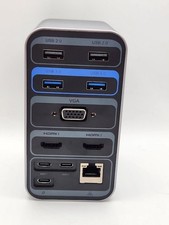
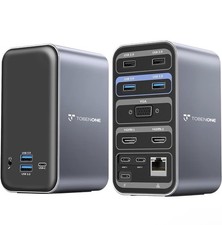
It provides 2 4K HDMI and 1 VGA, for high-definition video output, USB C(5Gbps, only support data transfer), USB C PD 3.0(support max 100w input), 2 USB 3.0(up to 5Gbps), 2 USB 2.0 for wireless devices, SD/Micro SD(can read at the same time), RJ45 wired Gigabit Ethernet (10/100/1000Mbps) and 3.5 mm Audio output, 2 USB C host(connect to the dock).
This MacBook Pro dock also has dual functions and not only can meet the various requirements of users ( Up to 16 ports, dual 4K HDMI monitors) but also the laptop stand function (improve desktop utilization), one thing with two functions, when you want to use a dual external monitor to display, you can close the laptop and place it in the USB C dock stand, make your desktop in an orderly and neat manner. So you can improve work efficiency and makes you manage multiple applications more conveniently. How to set up dual monitors?
1>Please ensure your laptop is MacBook Pro 2016-2021 MacBook Air 2018-2020 (Note: MacBooks with Apple M1 chip only support 1 monitor)
2>Please attach the power supply to our MacBook Pro docking station
3> Attach the dual USB C cable to the USB C docking station and the MacBook
4> Add what you want to add, such as SMARTboard, projector, desk monitors, etc. Add your devices one by one can help to protect the dock and your laptop.
2. Why can't I charge my MacBook Pro to 100W when using the USB C dock?
1> Because the MacBook Pro docking station dual monitor itself consumes part of the power. Condition O
2> Depends on your power supply. If you use a 100W charger, you can charge your laptop at a maximum of 85W. If you use a charger less than 60W, you can charge your laptop at a maximum of 45W. We recommend using a power supply than 65W for a more stable connection.
3>Please check the host USB-C port of your device support power delivery or not.
Please connect the power supply to the PD port on the USB C docking station before connecting an external hard drive or multiple display purposes.
Why don't I have display when the dock station is connected?
Please make sure your MacBook with Thunderbolt 3/4 Ports.
Please attach your MacBook power supply to the PD port of this dock, so all devices can run more stable.
Please try other HDMI/VGA cables to connect the monitors, so we can know if there is any defective cable
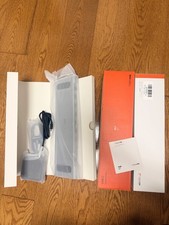
Unplug the dock, and replug it into the left side ports of your MacBook Pro. The attached USB C cable has no up or down orientation, it has the same connector on both ends, so you don't have to figure out which end goes where, just plug it into the dock and MacBook Pro firmly. Condition Open Box like New. Shipping With USPS Priority Mail. ePID 062822-880-KR